 AlphaWeb
Connect your custom domain
Use your own domain for your AlphaWeb storefront. Connect it in workspace settings, add the DNS records at your provider, and check that your site is live with HTTPS.
Connect an address such as www.yourbrand.com or shop.yourbrand.com to your published AlphaWeb site. This guide covers your storefront domain: the address for the website, store and funnel pages you publish in this workspace.
You will need:
- An owner or admin account in the correct AlphaWeb workspace.
- A domain you own and access to its DNS settings. The company managing DNS may be different from the company where you bought the domain.
- Your workspace's initial storefront deployment to be ready. If AlphaWeb is still preparing it, wait for that setup to finish.
Choose the address you want customers to visit
A subdomain such as www.yourbrand.com or shop.yourbrand.com works with a CNAME record. A root domain such as yourbrand.com needs DNS-provider support for an apex alias or CNAME flattening. If you are unsure, use a subdomain and check your provider's root-domain guidance before connecting the root.
If your existing website already uses an address, pointing that address at AlphaWeb replaces where visitors go. Use an unused subdomain if you want to keep the existing site in place.
Open your storefront domain settings
- Sign in to AlphaWeb and select the workspace whose site you want to connect.
- Open Settings → Site & domain.
- If you see Store domain and Checkout domain tabs, select Store domain. Find the Domain card below the favicon settings.
- Check that the card says Ready to connect, or shows the domain already connected to this workspace.
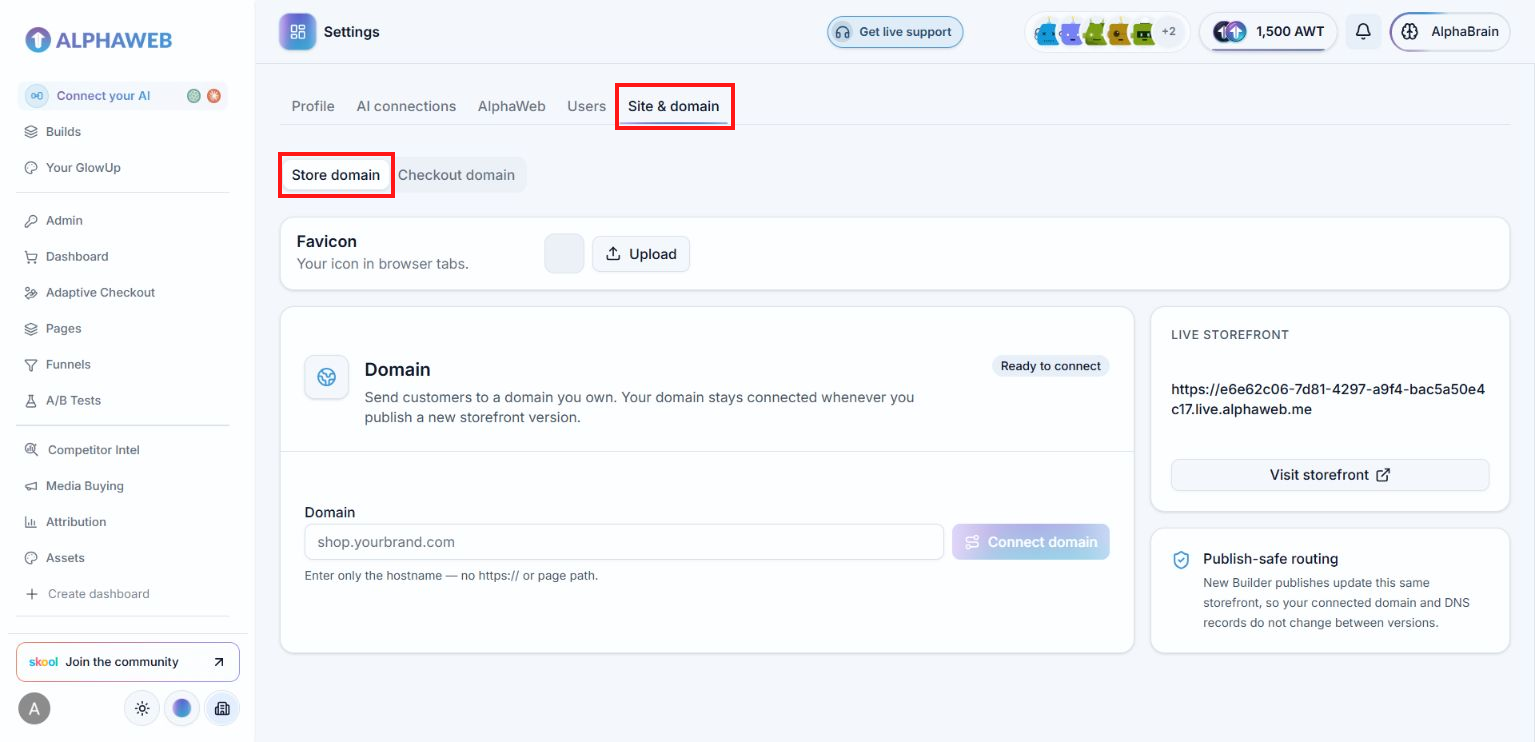
Domain configuration unlocks after the initial storefront deployment completes. Click Check again after a few minutes. If it stays on Preparing, contact AlphaWeb with your workspace name and the message shown; adding DNS records will not finish a failed storefront setup.
Confirm that you selected the right workspace and are signed in as its owner or an admin. Ask the workspace owner to check your access if this section is missing.
Enter your domain and connect
- In Domain, enter the exact address you want to use, for example
shop.yourbrand.com. - Enter only the hostname: leave out
https://, page paths, query strings and port numbers. - Click Connect domain and wait for the DNS records section to appear.
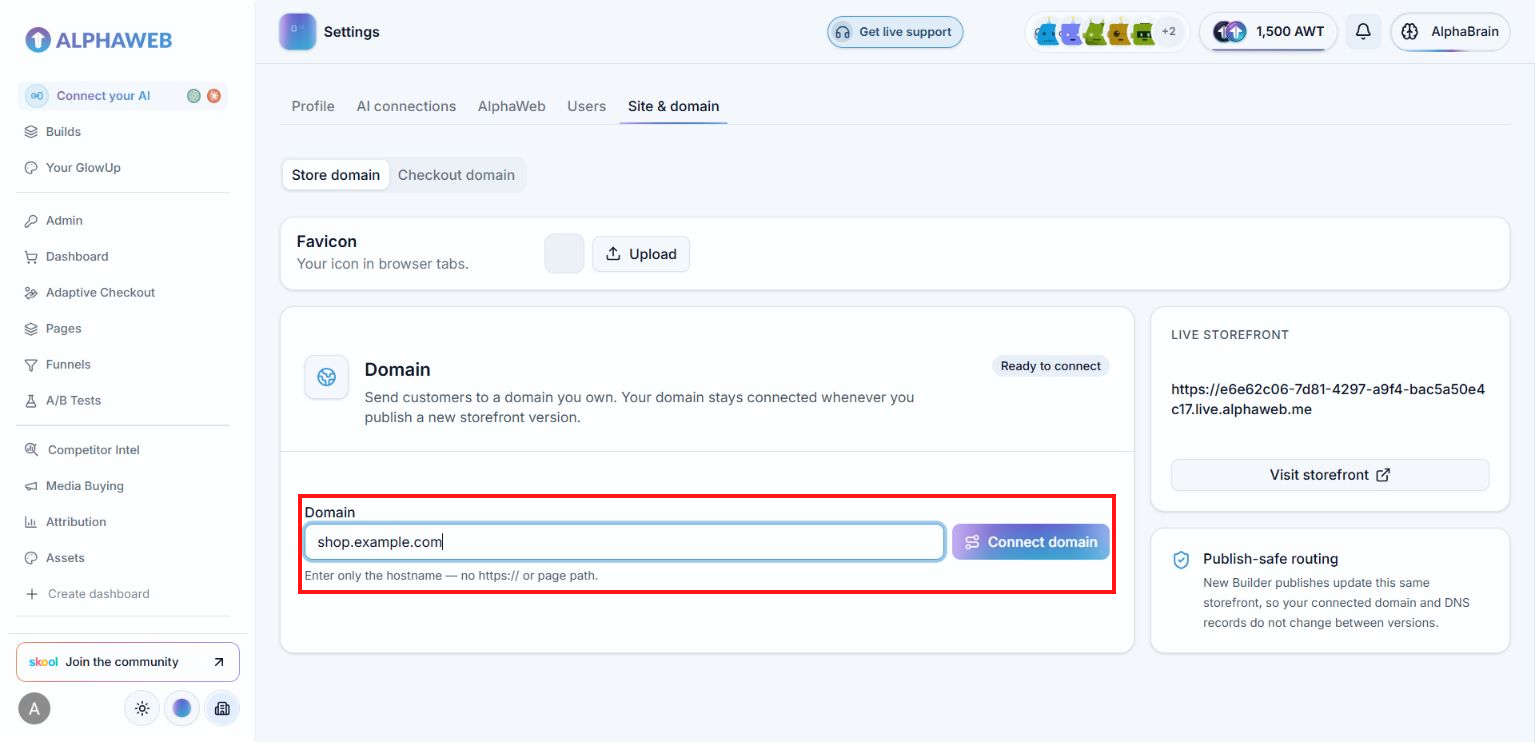
Connecting shop.yourbrand.com does not also connect www.yourbrand.com or yourbrand.com. Use the exact address you entered for the remaining steps. You do not need a separate domain for every published page or funnel route in this workspace.
Already have a connected domain?
The button says Update domain instead. Updating replaces the existing storefront-domain connection. Plan the change before doing this on a site that already receives visitors; the old address will not remain connected while the replacement is being verified.
Copy the DNS records and add them at your provider
- In AlphaWeb's DNS records section, click Reveal to see the record names and values.
- Keep AlphaWeb open. In another tab, open the DNS settings for your domain at the provider that manages its DNS.
- Add each record shown by AlphaWeb, using its Type, Name and Value. The copy button at the end of each row copies its Value; also copy the matching Name.
- Save your DNS changes at your provider.
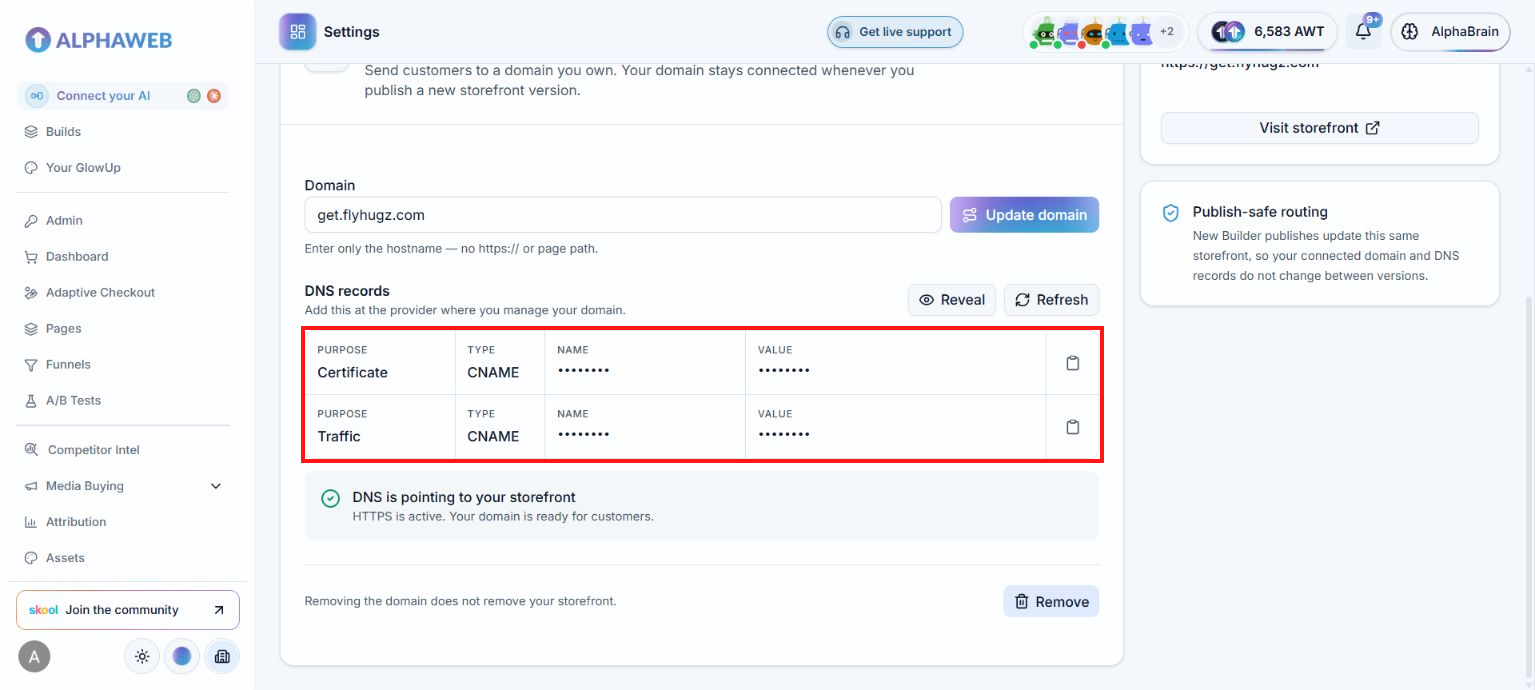
| AlphaWeb record | What it does |
|---|---|
| Certificate | Verifies domain ownership so AlphaWeb can set up HTTPS. |
| Traffic | Sends visitors for your chosen address to your AlphaWeb storefront. |
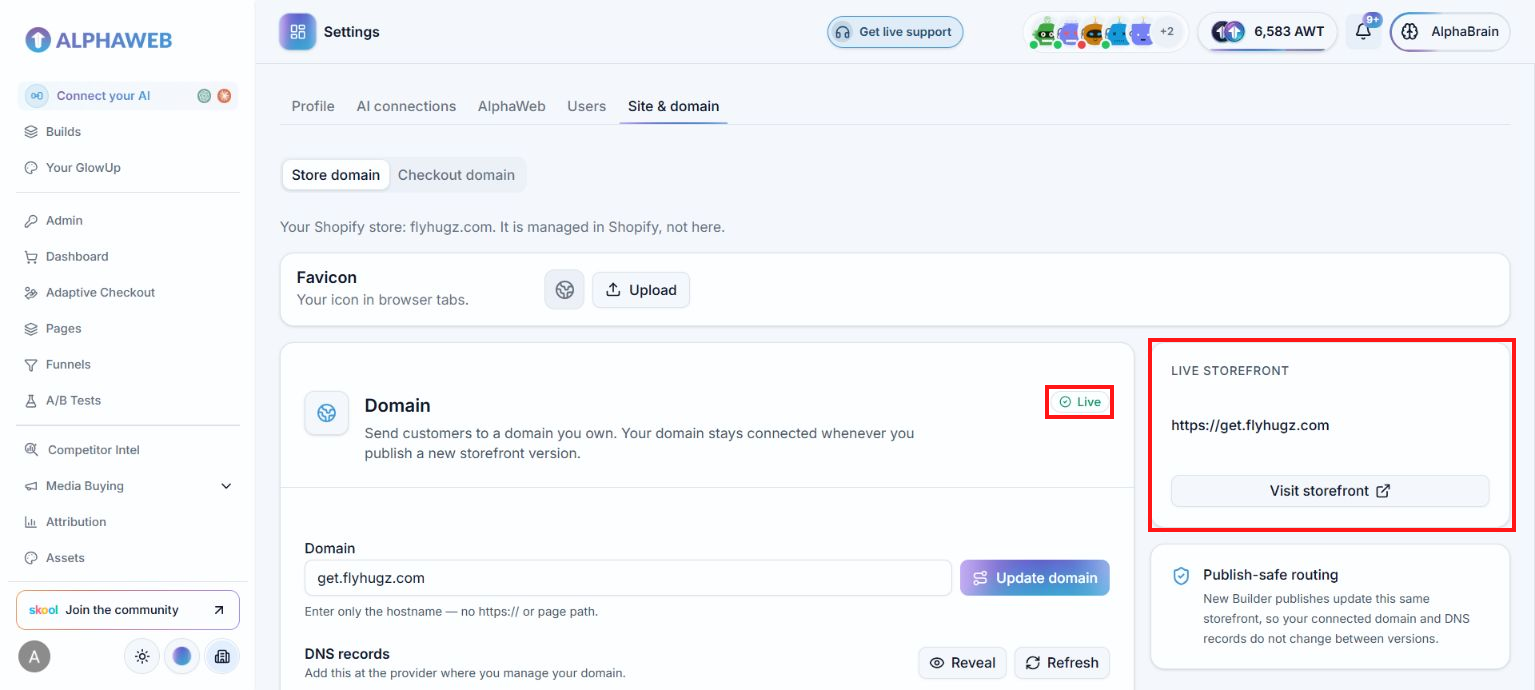
The screenshot shows an already-connected example with its record names and values hidden. Click Reveal in your own workspace and copy your records; do not use another workspace's values. Keep both records after the domain becomes live: the certificate record is also needed for automatic certificate renewal.
DNS providers use different field names. Name may be called Host or Hostname; Value may be called Target or Points to. Follow your provider's instructions for adding a CNAME:
- Some providers append your domain automatically. For
shop.yourbrand.com, their Host field may need onlyshop. Check the final saved name so it does not becomeshop.yourbrand.com.yourbrand.com. - Preserve the leading underscore in certificate record names and copy the complete target. DNS values are hostnames, not URLs with
https://. - If TTL is required, use your provider's default unless it gives you different instructions.
- If a record already exists at the same name, check what it serves before replacing it. A CNAME cannot coexist with conflicting records at that name. Leave unrelated records, especially email records, in place.
Ask your provider how to point the root domain to the Traffic target using its supported alias or flattening feature. Do not invent an IP address or paste a hostname into a field that requires an IP address. If the provider cannot support this, connect www.yourbrand.com or shop.yourbrand.com instead. Any redirect from the root to that subdomain must be configured separately with your provider; AlphaWeb does not create it through this form.
Use the DNS service your domain's nameservers currently point to. Your registrar's domain settings can show which nameservers are in use. If another company manages DNS, add the records there. You do not need to transfer your domain to AlphaWeb.
Return to AlphaWeb and check DNS and HTTPS
- Return to Settings → Site & domain → Store domain (or the Domain card if there are no sub-tabs).
- Click Refresh in the DNS records section. AlphaWeb also checks automatically for a while during setup.
- Wait for the domain to show Live and the message HTTPS is active. Your domain is ready for customers.
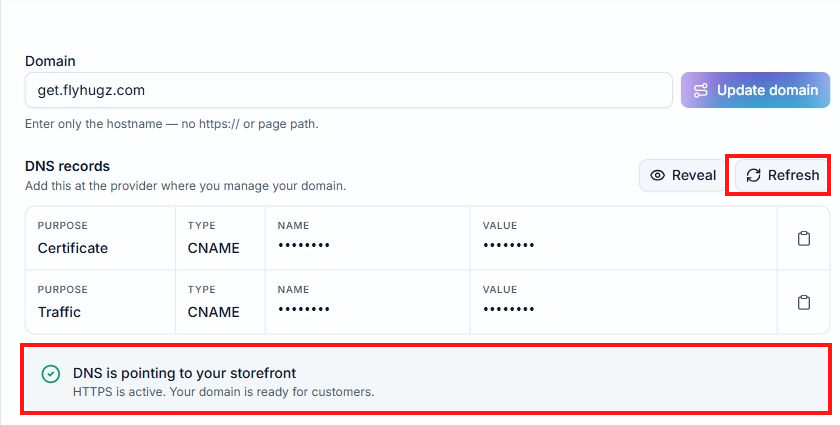
| Status | What to do |
|---|---|
| DNS pending | Check that both records are saved at your active DNS provider. Allow time for the changes to propagate. |
| HTTPS pending | Keep the DNS records in place while AlphaWeb finishes HTTPS setup. |
| Needs attention | Read the message below the records, correct the reported issue, and refresh. |
| Live | Open your storefront and verify it in the next step. |
DNS changes can take up to 48 hours. You can leave this page and return later; closing the tab does not cancel setup. If automatic checks have stopped, click Refresh to check again. A saved domain or a visible DNS table is not the same as a live connection.
Open your live storefront
- Confirm the Live badge and HTTPS-ready message in the Domain card.
- In the Live storefront card, check that the URL uses your custom domain, then click Visit storefront.
- Confirm that your published site loads over
https://without a certificate warning. Open a published product or funnel page too, if your site has one.
Your domain stays connected when you publish new storefront versions; you do not need to recreate these DNS records for each release. Connecting a domain does not publish an unfinished build or configure your payment gateways. See Connect Stripe and Connect PayPal if you are also preparing to accept payments.
Troubleshooting and changes
Compare every saved record with the current AlphaWeb Name and Value, including the certificate record. Check for a duplicated domain suffix, conflicting records at the same name, or changes made at an inactive DNS provider. If your DNS service proxies traffic, consult its DNS-only setup guidance when troubleshooting verification. Refresh in AlphaWeb after correcting the records. If setup is still pending after 48 hours, contact AlphaWeb with the hostname and the status message.
The hostname may still be connected to another workspace or hosting service, including an older staging setup. Changing DNS alone does not release that hosting connection. Remove the old connection through the service that owns it before retrying. If it is already removed but the error remains, contact AlphaWeb with the hostname and exact error so the remaining hosting association can be checked. Do not repeatedly delete and recreate the DNS records to resolve an ownership error.
Confirm that its Traffic record points to the value shown in the intended workspace. Domain connection serves that workspace's published site; a saved draft or build preview is not automatically published. Check the latest publishing result before changing a working DNS setup.
To replace it, enter the new hostname and click Update domain, then follow the DNS and verification steps again using the new records.
To disconnect it, click Remove in the Domain card. This removes the custom-domain connection, not the storefront; the site remains available at its AlphaWeb-provided address. DNS records at your provider are not removed by this action. Remove or repoint only the old records you no longer need, and check whether a certificate record is shared with another active connection before deleting it.