 AlphaWeb
Connect ChatGPT
Add AlphaWeb to ChatGPT as a plugin, and ChatGPT can build, edit and publish your site with you. It takes about 5 minutes and costs nothing extra.
Free on your own ChatGPT plan. Works on ChatGPT web and the ChatGPT desktop app. Your plan, or your workspace admin, must allow custom plugins.
Add AlphaWeb to ChatGPT
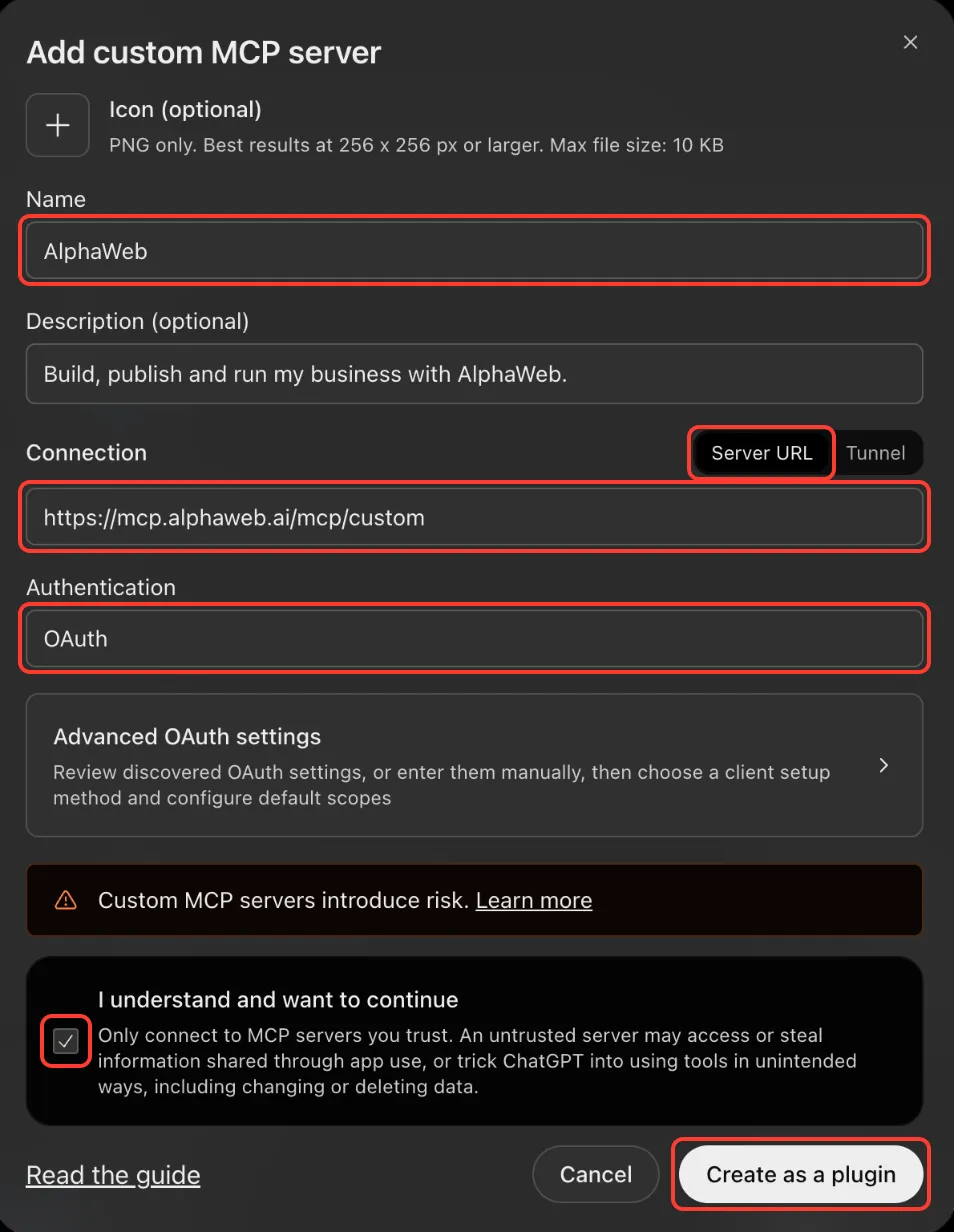
Create a custom plugin named AlphaWeb with your AlphaWeb link.
Open ChatGPT plugins. It opens Plugins in ChatGPT.
-
Click Add at the top right, then Add custom MCP server.
-
In Name, enter AlphaWeb.
Name AlphaWeb -
In Description, paste this (optional).
Description Build, publish and run my business with AlphaWeb. -
Under Connection, keep Server URL selected and paste your AlphaWeb link.
AlphaWeb link https://mcp.alphaweb.ai/mcp/custom -
Leave Authentication on OAuth.
-
Tick I understand and want to continue, then click Create as a plugin. Loading AlphaWeb’s tools takes up to 30 seconds.

- No Add custom MCP server option? Your plan or workspace admin has not allowed custom plugins. Ask your admin, or check Settings → Plugins → Advanced for developer mode.
- Paste the link exactly as shown, including /mcp/custom at the end.
- Creating takes longer than a minute? Refresh the page and open Plugins again: AlphaWeb may already be there.
Sign in and choose your workspace
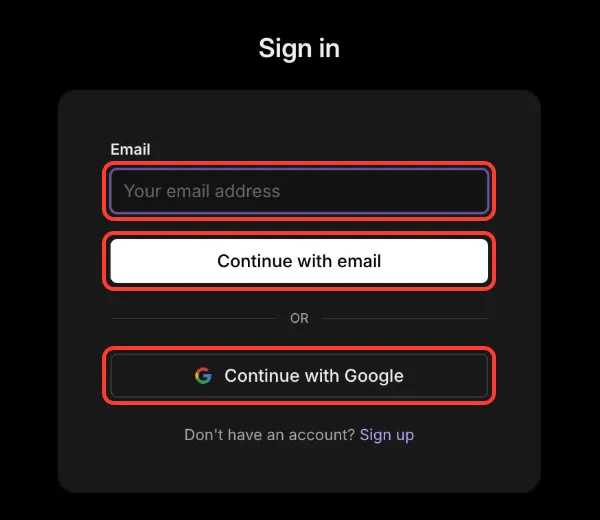
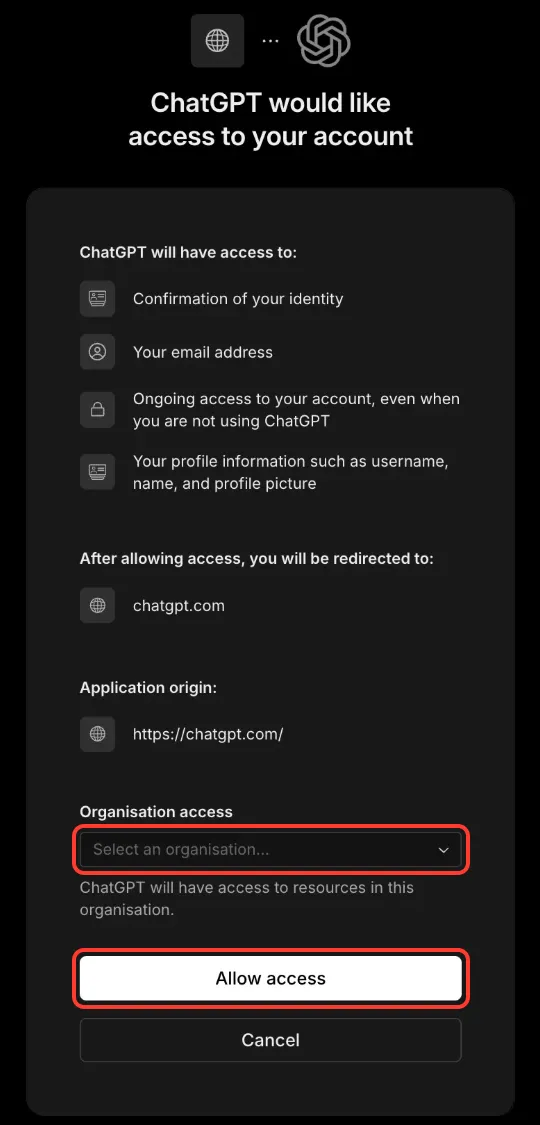
ChatGPT opens an AlphaWeb sign-in window. Approve access to your workspace.
- ChatGPT opens an AlphaWeb sign-in window. If it does not, open AlphaWeb in Plugins and click Connect.
- Sign in with the same email you use for AlphaWeb, or Continue with Google.
- Under Organisation access, choose your workspace and click Allow access.
- If ChatGPT asks, click Install to add the plugin to your chats.
- Back on AlphaWeb’s Connect your AI page, this step ticks itself off once AlphaWeb sees ChatGPT.
- Allow pop-ups for chatgpt.com if the sign-in window never appears.
- Signed in with a different email? Sign out of AlphaWeb in that window and sign in with the account that owns this workspace.
- Still not green after a minute? Delete the AlphaWeb plugin in ChatGPT, add it again and approve this workspace.
Start AlphaWeb in a new chat
Select AlphaWeb with @ and send the setup message.
-
Open a new chat, type @ and choose AlphaWeb.
-
Paste the setup message and send it.
-
ChatGPT checks your workspace and starts setting you up.
- ChatGPT says it cannot reach AlphaWeb: type @, choose AlphaWeb again, then resend.
- AlphaWeb is missing from the @ list: finish step 2 and click Install on the plugin.
Save AlphaWeb to your custom instructions
So ChatGPT uses AlphaWeb in every chat without you asking.
-
ChatGPT shows you a short instruction to save. Copy it from the chat, or copy it here.
-
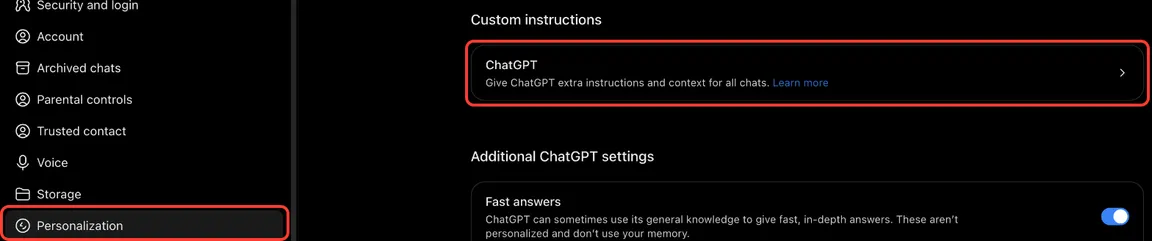
Open your custom instructions, or go to Settings → Personalization, scroll to Custom instructions and click ChatGPT.
-
Paste it at the end of anything already there and click Save at the top right.
-
Go back to your chat and type Done.
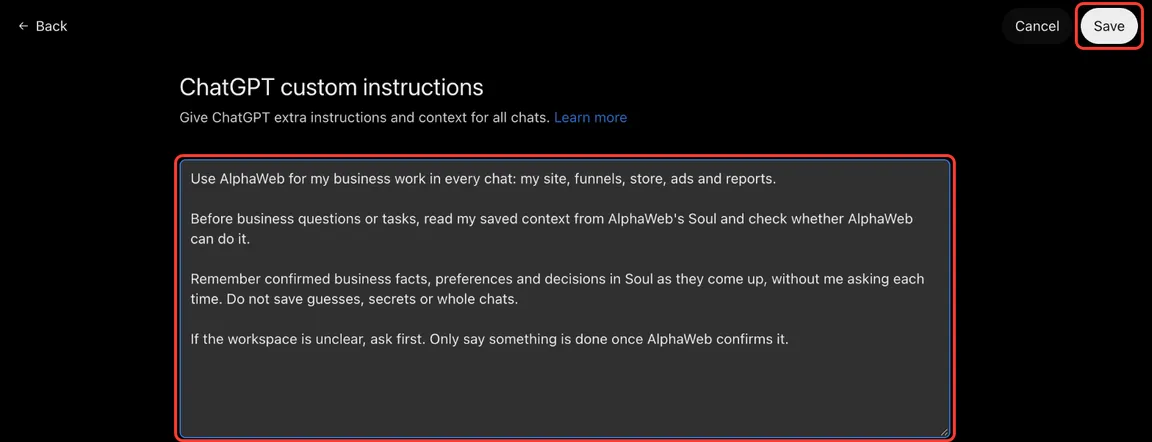
- Keep your existing instructions. Add AlphaWeb’s at the end.
- You do not need to turn on ChatGPT’s built-in Memory.
- ChatGPT did not ask? Type “Set up AlphaWeb memory” in the chat.
Use AlphaWeb in any chat
Type @AlphaWeb and tell ChatGPT what you want to do.
- In any chat, type @ and choose AlphaWeb.
- Then say what you want, for example “turn my GlowUp into my website” or “build a funnel for my best seller”.
- ChatGPT shows you a preview link before anything is published.
Connect Claude
Add AlphaWeb to Claude once, and Claude can build, edit and publish your site with you. It takes about 5 minutes and costs nothing extra.
Connect your Shopify store
Connect Shopify so AlphaWeb imports your products and orders. It takes about 10 minutes. You create a private AlphaWeb app in Shopify and paste its details into AlphaWeb.