 AlphaWeb
Connect Claude
Add AlphaWeb to Claude once, and Claude can build, edit and publish your site with you. It takes about 5 minutes and costs nothing extra.
Free on any Claude plan. Works on Claude web and the Claude desktop app (the Free plan allows one custom connector). On Team and Enterprise plans an owner adds it first.
Add AlphaWeb to Claude
Create a custom connector named AlphaWeb with your AlphaWeb link.
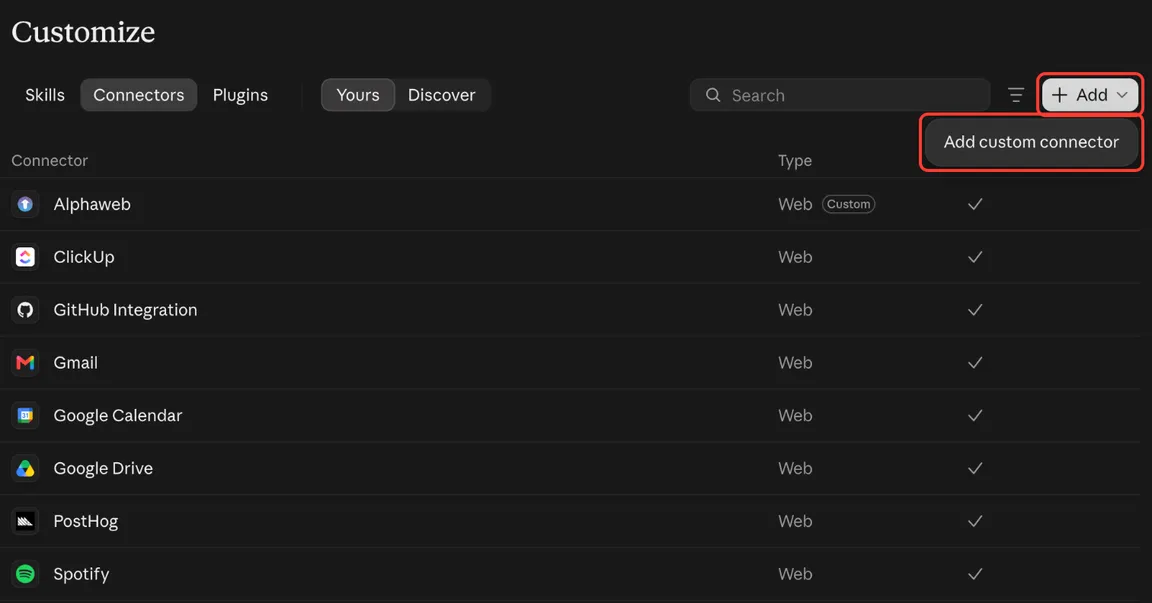
Open Claude connectors. It opens Customize → Connectors in Claude.
-
Click + Add, then Add custom connector.
-
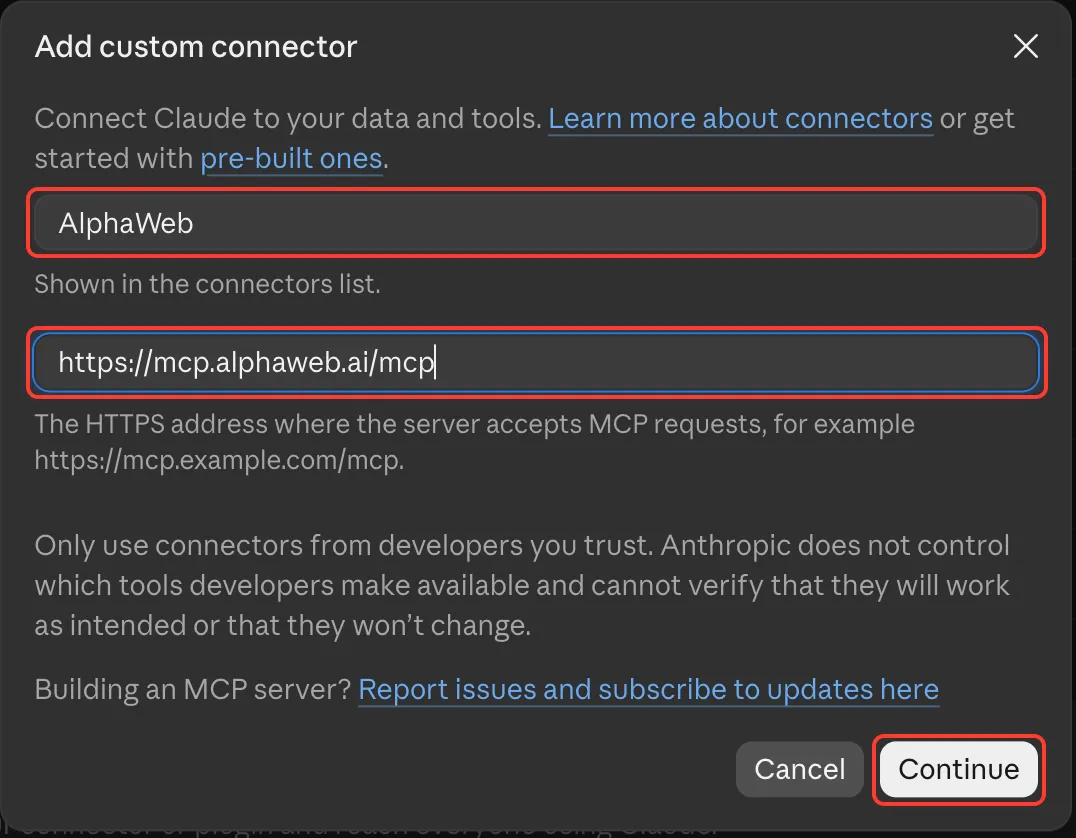
In Name, enter AlphaWeb.
Name AlphaWeb -
In MCP server URL, paste your AlphaWeb link, then click Continue.
AlphaWeb link https://mcp.alphaweb.ai/mcp -
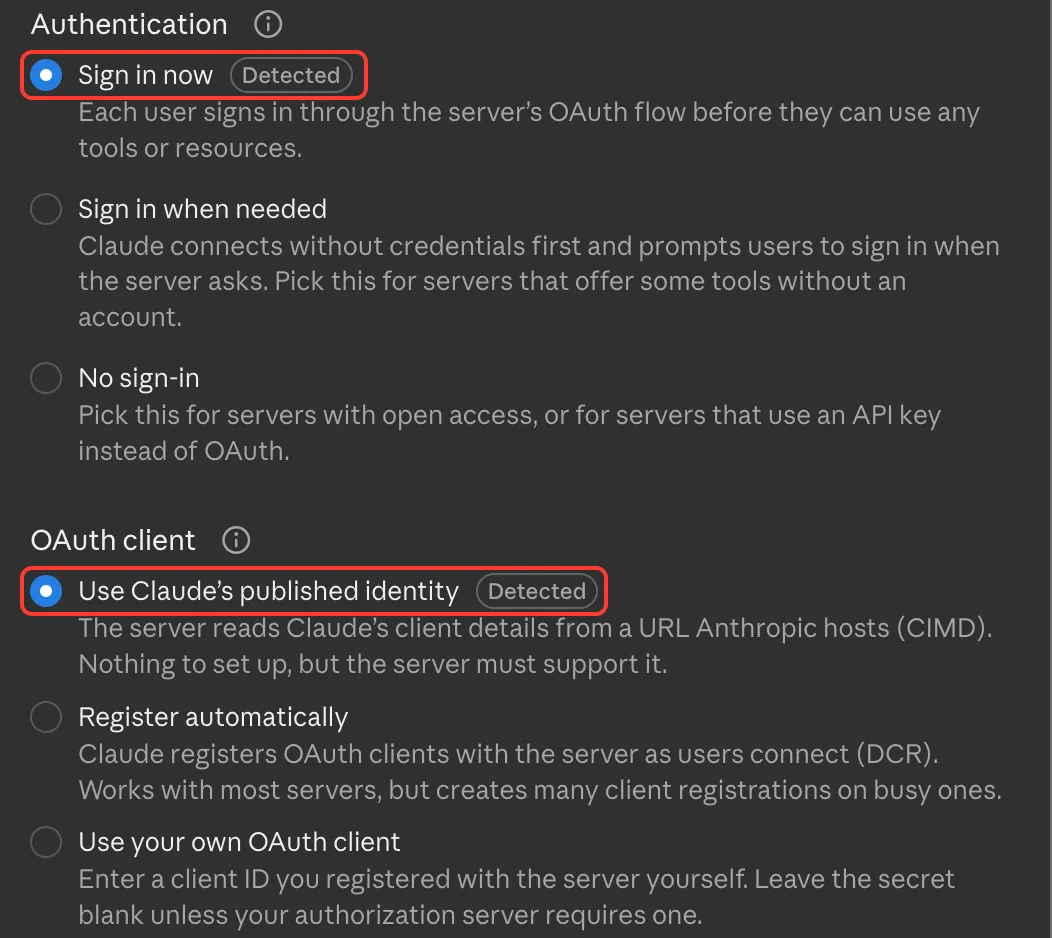
Keep the sign-in settings Claude detects (Sign in now and Use Claude’s published identity).
-
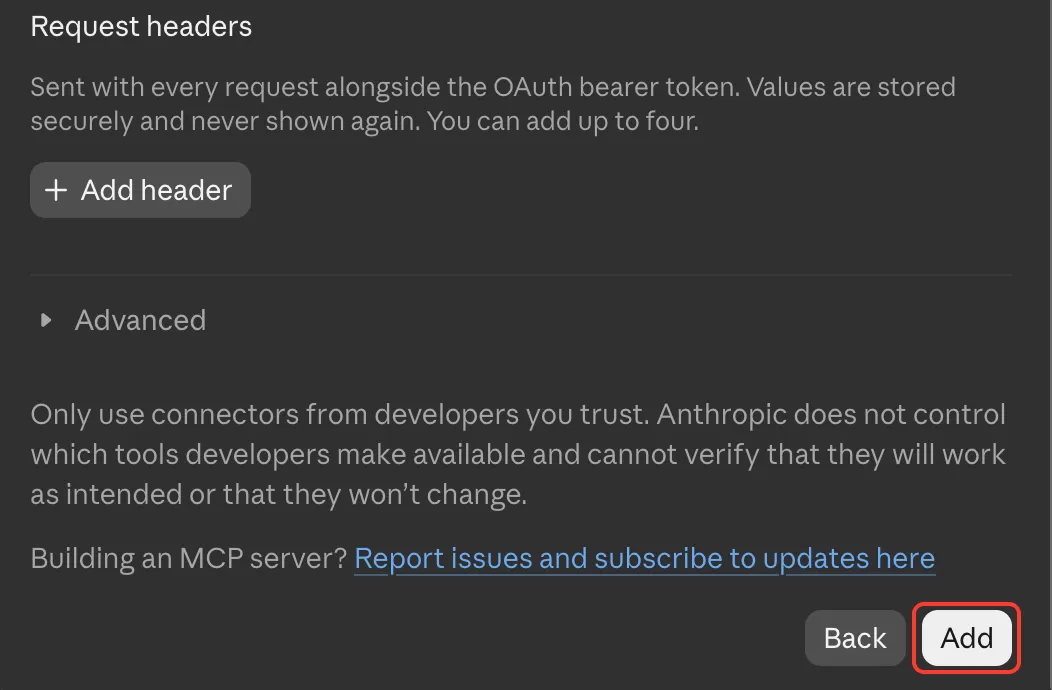
Leave Request headers and Advanced empty: nothing needs adding there. Click Add.
- Claude says a connector with this URL already exists? AlphaWeb is already added. Open Customize → Connectors → Yours, click Alphaweb and Connect.
- No Add custom connector option? On Team and Enterprise plans only an owner can add it: ask your owner to add AlphaWeb in Organization settings → Connectors, then click Connect next to it.
- On the Free plan Claude allows one custom connector. Remove an unused one first.
- Paste the link exactly as shown, including /mcp at the end.
Sign in and choose your workspace
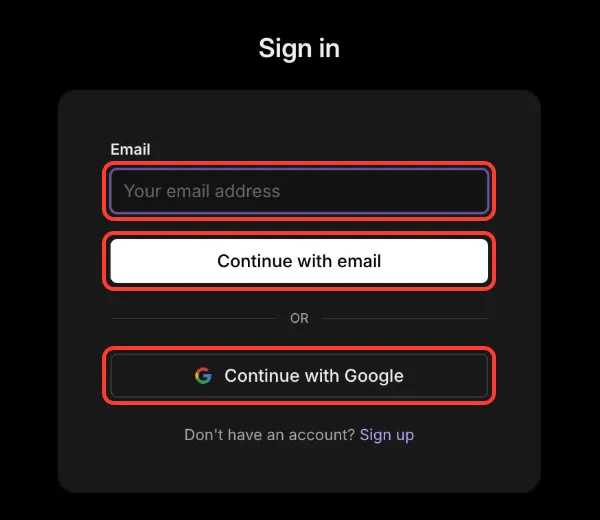
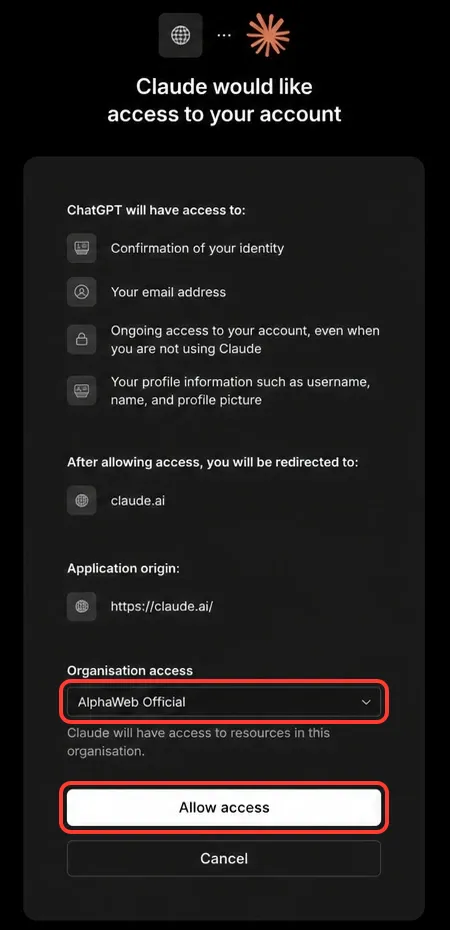
Claude opens an AlphaWeb sign-in window. Approve access to your workspace.
- Claude opens an AlphaWeb sign-in window. If it does not, click Connect next to AlphaWeb in Customize → Connectors.
- Sign in with the same email you use for AlphaWeb, or Continue with Google.
- Under Organisation access, choose your workspace and click Allow access.
- Back on AlphaWeb’s Connect your AI page, this step ticks itself off once AlphaWeb sees Claude.
- Allow pop-ups for claude.ai if the sign-in window never appears.
- Signed in with a different email? Sign out of AlphaWeb in that window and sign in with the account that owns this workspace.
- Still not green after a minute? Remove AlphaWeb from Claude’s connectors, add it again and approve this workspace.
Start AlphaWeb in a new chat
Send the setup message so Claude can check your workspace and begin.
-
Open a new chat. Click + at the bottom left of the message box, open Connectors and make sure AlphaWeb is on.
-
Paste the setup message and send it.
-
Claude checks your workspace and starts setting you up.
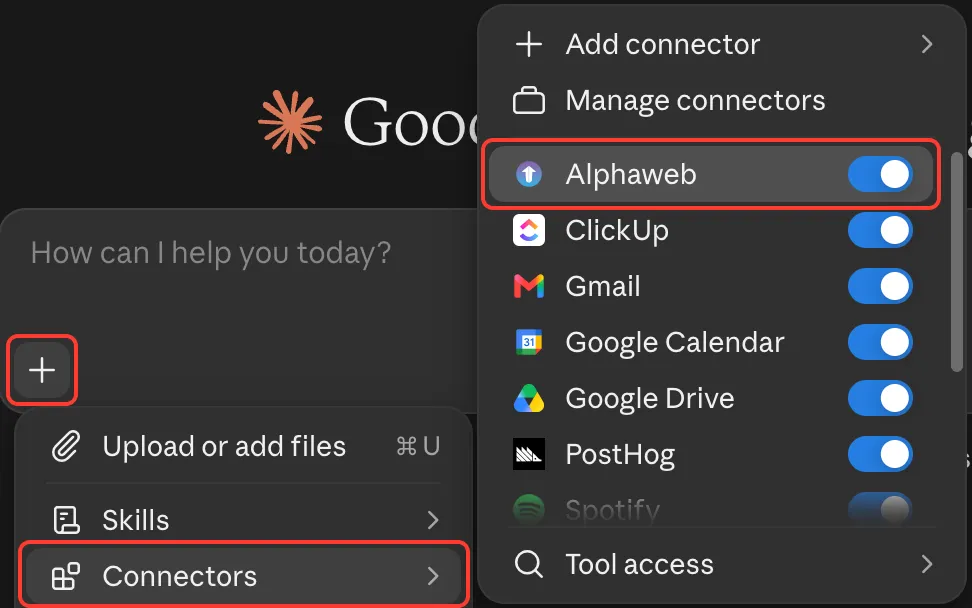
- Claude says it has no AlphaWeb tools: turn AlphaWeb on in + → Connectors for this chat, then send the message again.
- Claude asks you to connect: finish step 2 first, then start a new chat.
Save AlphaWeb to Claude’s instructions
So Claude uses AlphaWeb in every chat without you asking.
-
Claude shows you a short instruction to save. Copy it from the chat, or copy it here.
-
Open Claude settings, then Your Claude → Instructions (older layout: Settings → Account → Instructions for Claude).
-
Paste it at the end of anything already there and save.
-
Go back to your chat and type Done.
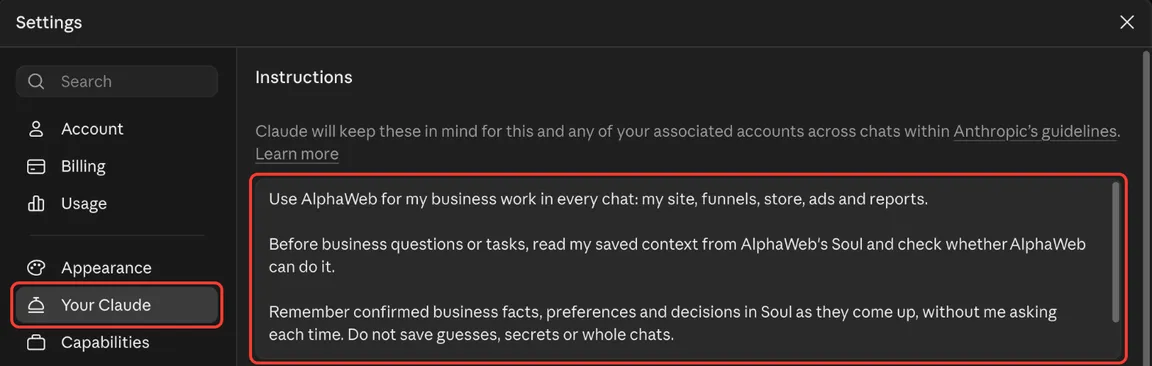
- Keep your existing instructions. Add AlphaWeb’s at the end.
- Claude did not ask? Type “Set up AlphaWeb memory” in the chat.
Use AlphaWeb in any chat
Turn AlphaWeb on and tell Claude what you want to do.
- In any chat, check + → Connectors → AlphaWeb is on.
- Start your message with Use AlphaWeb to…, for example “Use AlphaWeb to turn my GlowUp into my website”.
- Claude shows you a preview link before anything is published.